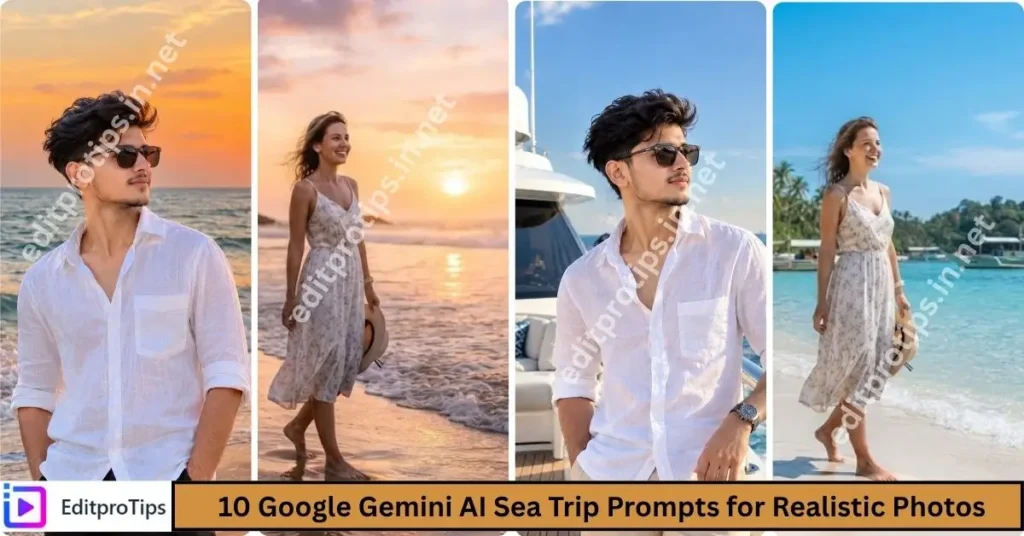
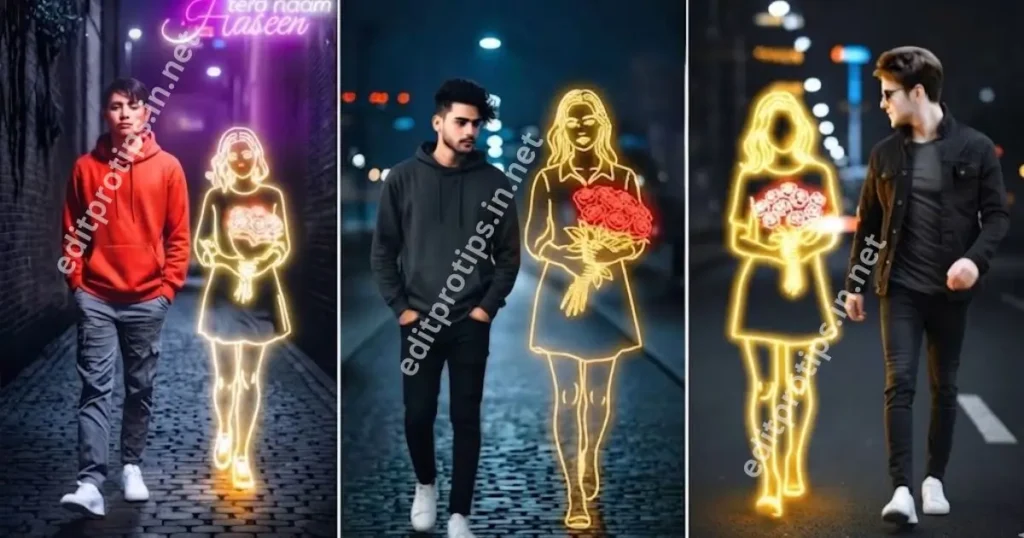
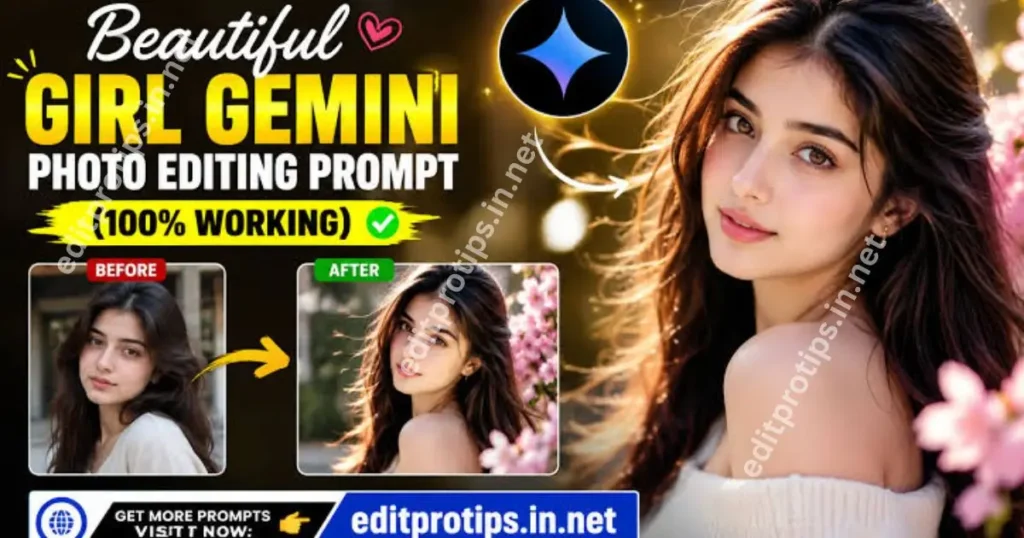
Want to turn your photos into amazing videos without spending money? A free AI photo to video generator can help you animate pictures, create cinematic effects, add realistic movement, and make engaging videos for Instagram Reels, TikTok, Facebook, and YouTube Shorts.
In 2026, AI video tools are making photo animation easier for beginners, content creators, photographers, and social media influencers. Instead of learning complicated video editing software, you can upload a photo, describe the movement you want, and let artificial intelligence generate a short video.
In this guide by EditProTips, we will explore seven popular AI photo-to-video tools, their main features, how to use them, and practical tips for getting better results.
Table of Contents
What Is a Free AI Photo to Video Generator?
A free AI photo to video generator is an online tool or application that uses artificial intelligence to transform a static image into a moving video clip.
For example, you can upload a portrait and ask the AI to create natural hair movement, a gentle smile, or a cinematic camera zoom. You can also animate landscapes, product photographs, illustrations, and travel pictures.
Depending on the tool, you may be able to use features such as:
- Image-to-video animation
- Cinematic camera movements
- Facial and body motion
- Background and environmental animation
- AI-generated visual effects
- Short video clips for social media
- Video enhancement and editing
Important: Free access does not always mean unlimited video generation. Some tools offer trial credits, restricted features, or limited exports. Always check the current plan before creating your videos.
7 Best Free AI Photo to Video Generator Tools in 2026
1. Dreamina AI Video Generator
Dreamina is a useful starting point for creators who want to transform still images into animated video clips. Its AI creation workflow lets users provide an image and describe the motion they want to see.
Key features:
- Image-to-video generation
- AI-assisted creative effects
- Motion prompts for subjects and cameras
- Additional creative tools, depending on availability
- Workflow suitable for social media content
How to use Dreamina:
- Visit the Dreamina website.
- Open its AI video generation feature.
- Upload your image.
- Enter a prompt describing the movement.
- Select the available generation settings.
- Generate your clip and review the result.
- Export the video if your current plan permits it.
Best for: Beginners, creative experiments, portraits, and social media videos.
Website: https://dreamina.capcut.com/
Check the available credits and export conditions in your account before starting.
2. Runway AI Video Generator
Runway is an AI creative platform for generating and editing visual content. Its image-to-video capabilities can help turn photographs into short cinematic scenes with controlled movement.
You can experiment with camera motion, subject movement, atmosphere, and visual storytelling. This makes it useful for creators who want more control over the look of their videos.
Key features:
- AI image-to-video generation
- Cinematic motion effects
- Creative video generation tools
- Options for experimenting with different visual styles
- Tools for professional creative workflows
How to use Runway:
- Open the official Runway website.
- Create an account.
- Select an image-to-video tool available in your plan.
- Upload a suitable photograph.
- Describe the motion and camera direction.
- Generate and preview the video.
- Download your result if your plan allows it.
Best for: Cinematic videos, artistic visuals, and creators who want to experiment with advanced AI generation.
Website: https://runwayml.com/
Runway’s free plan has historically included a limited, one-time credit allocation, and free-plan videos may carry a watermark. Check the current terms before generating.
3. Pika AI Video Generator
Pika is another popular choice for creating short AI-generated videos from images and text prompts. It is particularly interesting for creators experimenting with imaginative movement, stylized visuals, and entertaining social media content.
You can start with a photograph and describe how the scene should change. The final result depends on the selected model, settings, and prompt.
Key features:
- Image-to-video generation
- Creative motion effects
- Stylized animations
- Short-form video creation
- Multiple generation options, depending on the plan
How to use Pika:
- Visit the official Pika website.
- Sign in to your account.
- Choose an available image-to-video workflow.
- Upload your photo.
- Enter a detailed motion prompt.
- Generate the video and review the output.
- Save the result if your account permits exporting it.
Best for: Creative experiments, entertaining clips, and social media content.
Website: https://pika.art/
Free-plan note: Pika’s pricing page lists a free option, but it does not currently promise a recurring monthly credit allowance. Check whether free credits or a suitable generation option are available before relying on it.
4. Kling AI Video Generator
Kling AI is worth exploring if you want to create realistic-looking motion from a still image. Image-to-video generation can help bring portraits, fashion photographs, landscapes, and other visual concepts to life.
The quality of the result depends on the input image, model, prompt, and available settings.
Key features:
- Image-to-video animation
- Realistic movement experiments
- Cinematic scene generation
- Creative camera motion
- Short video creation for social platforms
How to use Kling AI:
- Open the official Kling AI platform.
- Register or sign in.
- Find the image-to-video generation feature.
- Upload your image.
- Describe the movement you want.
- Adjust the available settings.
- Generate and review the clip.
Best for: Portrait animation, cinematic scenes, fashion visuals, and realistic motion experiments.
Website: https://klingai.com/
Free credits, generation limits, waiting times, and export options may vary by account and region. Review the current offer before beginning.
5. Luma AI Dream Machine
Luma AI’s Dream Machine is designed for AI-assisted visual creation and video generation. It is an option for creators interested in transforming still images into moving scenes with a cinematic appearance.
You can experiment with subtle camera movement, scene transitions, and atmospheric effects to create short visual stories.
Key features:
- AI video generation
- Image-based creative workflows
- Cinematic visual experiments
- Motion and scene development
- Tools for creative storytelling
How to use Luma AI:
- Visit the official Luma AI website.
- Sign in and check the available generation options.
- Select an appropriate image-to-video workflow.
- Upload your photograph.
- Describe the desired action and camera movement.
- Generate the clip and evaluate the result.
- Export it if your plan supports downloads.
Best for: Cinematic scenes, storytelling, and experimental visuals.
Website: https://lumalabs.ai/
Free-plan note: Do not assume unlimited free generation. Availability, credits, and export conditions can change, so check the current plan before using it for a project.
6. Hailuo AI Video Generator
Hailuo AI is another tool to investigate when creating AI-generated motion from images. It can be useful for testing creative concepts, character movement, and short visual sequences.
For the best results, begin with a clear image and describe one or two simple actions instead of trying to animate everything at once.
Key features:
- AI-assisted video creation
- Image-based video generation where available
- Creative motion prompts
- Short visual scenes
- Options for experimenting with different styles
How to use Hailuo AI:
- Open the official Hailuo AI platform.
- Sign in to your account.
- Locate the image-to-video feature.
- Upload your photograph.
- Write a prompt explaining the desired movement.
- Generate the clip.
- Preview and export it if permitted by your plan.
Best for: Creative video experiments, portraits, and short visual stories.
Website: https://hailuoai.video/
Check current registration requirements, free credits, and export restrictions because these may change over time.
7. Adobe Firefly
Adobe Firefly is an option for creators who want AI-powered visual tools within a broader creative workflow. Its video features can help users explore generated footage and image-based video creation where supported.
It may be particularly useful for designers and creators who already work with Adobe’s creative applications.
Key features:
- AI-powered creative tools
- Video generation features
- Image-based creative workflows where supported
- Integration with Adobe’s broader creative ecosystem
- Options for professional visual projects
How to use Adobe Firefly:
- Visit the official Adobe Firefly website.
- Sign in with an Adobe account.
- Explore the currently available video generation features.
- Select an image-to-video option if available.
- Upload an image and enter your prompt.
- Generate and review the output.
- Export the video according to your plan’s limits.
Best for: Designers, marketing content, and creators who want to explore Adobe’s AI tools.
Website: https://firefly.adobe.com/
Some features may require paid credits or an eligible subscription. Check the current plan and usage terms before generating content.
Comparison of the 7 AI Photo to Video Tools
| AI tool | Best use | Free access to check |
|---|---|---|
| Dreamina | Beginner-friendly creation | Available credits and export limits |
| Runway | Cinematic experiments | Limited credits and watermark rules |
| Pika | Creative short videos | Current credits and free generation options |
| Kling AI | Realistic motion experiments | Account credits and generation limits |
| Luma AI | Cinematic storytelling | Current plan and export availability |
| Hailuo AI | Creative motion concepts | Registration and credit availability |
| Adobe Firefly | Design-focused workflows | Feature access and usage credits |
This comparison is a practical starting point, not a guarantee that every feature is free. Plans and availability can change during 2026.
How to Turn a Photo into a Video Using AI for Free
Follow these steps to create your first AI photo animation.
Step 1: Choose a High-Quality Photo
Select a clear image with good lighting and a well-defined subject. Portraits, product photographs, travel images, and landscape photos can all work well.
Avoid heavily blurred images or photographs with important details cut off.
Step 2: Select an AI Photo to Video Generator
Choose one of the tools listed above. Compare the available free credits, video quality, export options, and watermark rules before uploading your image.
Step 3: Upload Your Image
Open the image-to-video feature and upload your selected photograph. Some tools may offer additional settings for aspect ratio, duration, or motion strength.
Step 4: Write an AI Motion Prompt
A motion prompt tells the AI how you want your photograph to move.
For example, you can use this prompt:
AI Photo to Video Prompt:
“Animate this photograph into a realistic cinematic video. Keep the main subject’s appearance consistent with the original image. Add subtle natural movement, gentle wind, realistic lighting, and a slow camera push-in. Keep the background visually consistent, avoid sudden changes, and create smooth, natural motion.”
Change the instructions to match your photograph and the style you want.
Step 5: Generate the Video
Click the generation button and wait for the tool to process your image. Generation times depend on the platform, model, demand, and selected settings.
Step 6: Preview and Improve the Result
Check for distorted faces, unnatural movement, flickering, or changes to the background. If needed, simplify your prompt and generate another version if you have enough credits.
Step 7: Download and Edit Your Video
Export the result if your plan permits it. You can then use a video editor such as CapCut or VN to add music, text, transitions, subtitles, and other finishing touches.
For vertical social media content, a 9:16 aspect ratio is usually a useful starting point.
Best AI Photo to Video Prompts for Different Styles
Use these prompts as starting points and adjust them to your image.
1. Cinematic Portrait Prompt
“Create a cinematic animation from the uploaded portrait. Add subtle natural facial movement, gentle wind in the hair, soft lighting, and a slow camera zoom. Preserve the subject’s recognizable appearance and keep the scene realistic.”
2. Travel Photo Animation Prompt
“Animate this travel photograph with gentle environmental movement, drifting clouds, subtle tree movement, and a smooth cinematic camera pan. Preserve the original scene and create a natural, realistic atmosphere.”
3. Product Video Prompt
“Turn this product photograph into a clean promotional video. Add a slow camera orbit, soft studio lighting, subtle reflections, and smooth movement. Keep the product’s shape, color, and details consistent with the original image.”
4. Romantic Cinematic Prompt
“Animate this photograph with gentle camera movement, warm cinematic lighting, a soft breeze, and a dreamy atmosphere. Keep the people recognizable and the movement natural. Avoid changing clothing, facial features, or the background unnecessarily.”
5. Instagram Reels Prompt
“Transform this image into a short vertical cinematic video with smooth camera motion, subtle dynamic lighting, natural movement, and a visually engaging composition. Keep the main subject clear and make the result suitable for an Instagram Reel.”
Tips for Getting Better AI Photo to Video Results
Follow these tips to improve your output:
- Use clear images: Higher-quality input images often produce better results.
- Keep prompts specific: Describe the subject’s action, camera movement, and atmosphere.
- Avoid excessive movement: Simple motions can look more natural than complicated actions.
- Preserve important details: Ask the AI to maintain the subject’s appearance, clothing, and background.
- Preview before downloading: Check the entire clip for visual errors.
- Check the aspect ratio: Choose a vertical format for Reels and TikTok or a landscape format for YouTube videos.
- Review usage rights: Check whether the free plan permits commercial use before publishing promotional content.
- Protect privacy: Upload only photographs you have permission to use, especially images of other people.
Are Free AI Photo to Video Generators Really Free?
Yes, some AI photo-to-video tools provide free access, but the experience differs from one platform to another.
A free plan might include a small number of credits, limited resolution, slower processing, a watermark, or restrictions on commercial use. Other services may offer occasional promotional credits rather than unlimited free generations.
Before choosing a tool, check these five things:
- Whether image-to-video generation is included.
- How many free credits are available.
- Whether downloaded videos contain a watermark.
- Whether commercial use is permitted.
- Whether the tool is available in your country.
If you only need a few clips for personal use, a limited free plan may be enough. If you create videos regularly, compare the paid plans before committing to a service.
Frequently Asked Questions
What is the best free AI photo to video generator in 2026?
The best choice depends on your needs. Dreamina is a reasonable starting point for beginners, Runway is worth exploring for cinematic experiments, and Pika is useful for creative video generation. Check each platform’s current free access and export limits.
Can I convert a photo into a video for free?
Yes. Some AI tools allow limited free image-to-video generation through trial credits or other free access options. The number of videos you can create depends on the platform and its current plan.
Can AI animate a person’s photo?
Yes. Certain tools can generate subtle facial movement, camera motion, and other animation effects from a portrait. Results vary, and the AI may alter facial details. Use photographs with appropriate permission.
Which AI photo-to-video tool is best for Instagram Reels?
Dreamina, Pika, Kling AI, and other image-to-video tools can be useful for creating short social media clips. Choose a tool that supports your desired format and provides export options suitable for Reels.
Can I create AI videos without a watermark?
Some plans and tools offer watermark-free exports, while others place watermarks on free downloads. Check the current terms of your selected platform rather than assuming that every free video will be watermark-free.
Conclusion
A free AI photo to video generator makes it easier to turn ordinary photographs into engaging animated clips without mastering complex editing software. In 2026, tools such as Dreamina, Runway, Pika, Kling AI, Luma AI, Hailuo AI, and Adobe Firefly are worth exploring for different creative workflows.
Start with a clear photograph, write a simple motion prompt, and experiment with the free access available on your chosen platform. Once you have generated a clip, you can polish it with music, text, and transitions before sharing it on social media.
For more AI tools, editing ideas, creative prompts, and video-making guides, keep visiting EditProTips.
Free AI Photo to Video Generator, AI Video Generator, AI Photo Animation, Image to Video AI, Free AI Tools, AI Video Editing, AI Video Prompts, EditProTips